How to Edit a Course in ChessAtlas: Video Walkthrough
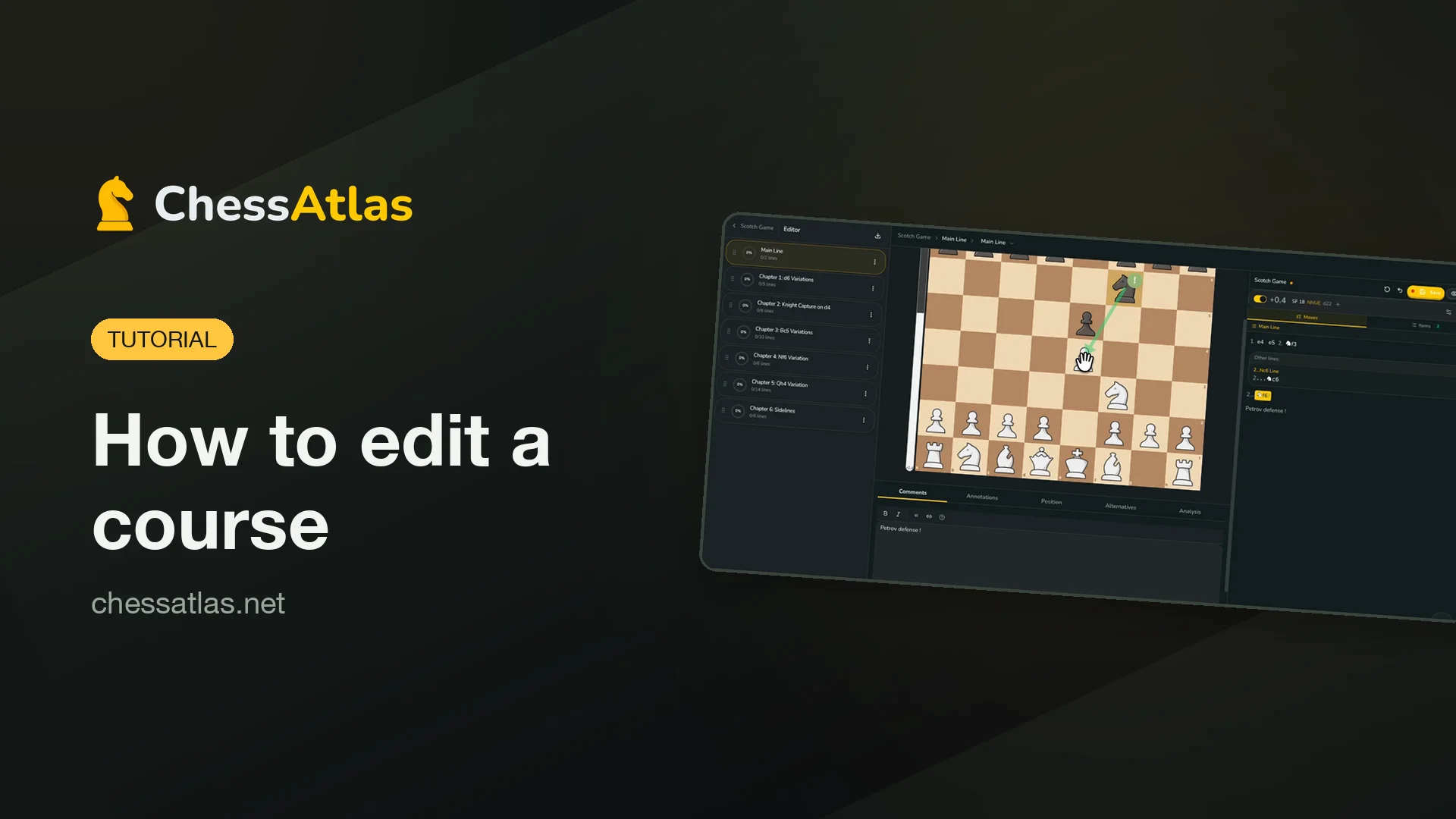
Table of contents
The course editor is where a ChessAtlas repertoire actually gets built: chapters, lines, explanations, and everything that later feeds your spaced-repetition training. This 3-minute video walks through the whole flow on a real course - a White repertoire against the Scotch Game - and the guide below recaps each step so you can come back to it as a reference.
Opening the editor
From your course page, open the course menu (the three dots in the top-right corner) and click Edit course. The editor has three areas: your chapters on the left, the board in the center, and the move list on the right, with every line and comment of the selected chapter.
Creating and organizing chapters
Click Add Chapter at the bottom of the sidebar and give it a name. A chapter can be a repertoire - lines to memorize with spaced repetition - or a resource, like games and exercises.
If you already have lines in PGN format, paste them into the PGN field of the same dialog: they are imported directly, and a multi-game PGN creates one chapter per game. Once created, chapters can be reordered by drag and drop, renamed, or merged from each chapter's menu.
Adding moves and variations
Adding moves could not be simpler: play them on the board. Each move is appended to the current line, and you can navigate back and forth with the arrow keys.
To create a variation, go back a move and play a different one - the editor branches automatically. It even detects transpositions: if your new line reaches a position that already exists in another chapter, the editor tells you where it transposes. A right-click on any move opens the editing menu: promote a variation to the main line, convert it to an alternative, delete a move, or start the chapter from that position.
Explaining ideas: comments, annotations, arrows
A good course explains ideas, not just moves. Select a move, open the Comments tab, and write why the move matters. In the Annotations tab, tag moves with the classic symbols - good move, mistake, brilliant - and evaluation marks. You can also draw arrows and highlight squares directly on the board with a right-click drag; they are saved with the move and shown again when you study the line. If you are not sure what deserves a comment, our guide on how to memorize openings covers what actually helps retention.
Alternatives: more than one good move
Some positions allow several acceptable moves. In the Alternatives tab, add the other moves you would be happy to play. During training they are accepted without counting as mistakes - your repertoire stays flexible without polluting your review stats.
Checking your lines: explorer and engine
The Explorer panel shows Lichess and Masters statistics for the current position - win rates, game counts, and top-level games - so you can verify what is actually played before extending a line. You can also switch on the engine: Stockfish evaluates the position and shows the best continuations while you build.
Saving and training
The editor does not autosave: when you have unsaved changes, the Save button lights up. Save before switching chapters - the editor warns you if you forget.
Once saved, everything you created is instantly trainable. Back on the course page, hit Learn: ChessAtlas quizzes you move by move, and your comments, symbols and arrows show up during the session. From there, spaced repetition schedules your reviews so the lines stick - see how to retain chess openings with spaced repetition for how the scheduling works.
Next steps
If you are starting from zero, read how to build your first opening repertoire, or fork a ready-made course from the course library and edit it to match your style - everything in this tutorial applies to forked courses too.
Create your free ChessAtlas account and build your first course today.
Last updated Jul 24, 2026